How to Create Transparent and Frosted Glass Materials in 3D
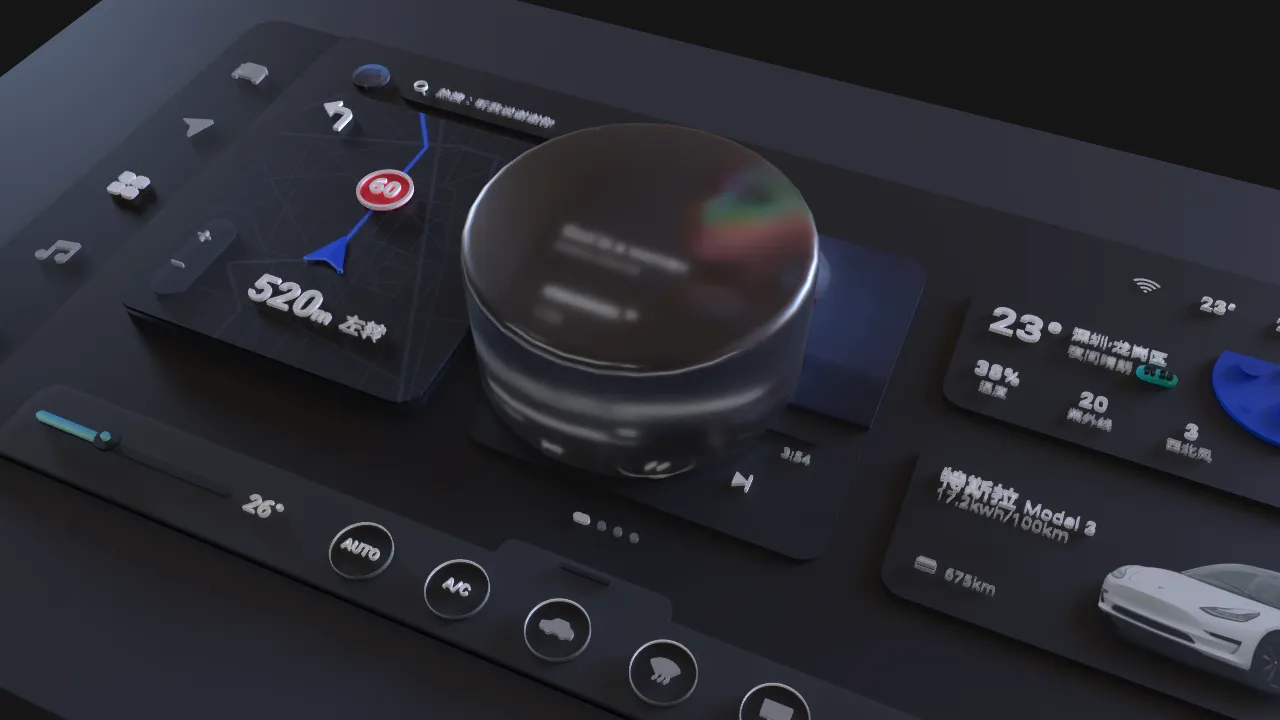
Convincing 3D glass depends on more than transparency. Geometry, thickness, lighting, the environment behind the object, camera angle, blur, clarity, and rendering quality all shape the result.
Design What the Glass Reveals
A transparent object needs visual information behind and around it. Place contrasting shapes, lights, typography, or environment detail so the surface has something to reveal, soften, or reflect.
Glass against an empty background may appear invisible. Solve the scene composition before increasing material complexity.
Start with Suitable Geometry
Use a closed form with enough thickness for the intended view. A single infinitely thin plane and a solid object do not behave the same way visually.
Check:
- Front and back surfaces are coherent.
- Edges are beveled enough to catch light.
- Thickness matches the scale of the object.
- Overlapping faces are removed.
- The silhouette is clean from the final camera.
Layer3D's editable geometry and solidify-style workflow make thickness easier to revise.
Transparent vs Frosted Glass
Transparent glass preserves more detail from objects behind it. Frosted glass scatters or softens that information, creating blur and privacy while retaining a sense of depth.
Use transparent glass for lenses, clear panels, polished objects, and overlapping forms. Use frosted glass for interface-inspired cards, diffusers, architectural surfaces, and soft graphic layers.
Layer3D separates useful clarity and blur decisions so the material can be tuned for the scene rather than treated as a fixed preset.
Establish the Background First
Test the material against the actual final background. A frosted panel over a plain color may show almost no blur; the same panel over detailed typography may become too busy.
Move the background closer or farther away and observe how the spatial relationship changes the result. Material tuning should happen in context.
Light the Edges
Glass becomes readable through reflections, highlights, absorption, distortion, and the contrast around its boundary. Use a large soft light for a broad reflection and a more directional source when the edge needs definition.
Rotate the camera or object slightly while testing. If the surface vanishes at an important point in the animation, adjust the lighting or environment rather than simply making the glass opaque.
Protect Text and Product Content
When glass overlaps UI or typography, readability is a production constraint. Reduce blur or distortion over important information, strengthen contrast, or reposition the material.
A physically interesting surface is not useful if it prevents the viewer from understanding the message.
Animate One Material Property at a Time
Glass can change during a shot, but avoid simultaneously animating clarity, color, opacity, blur, lighting, and camera movement. Choose the property that communicates the transition.
For example, a frosted panel can become clearer as a product feature is revealed, while the camera remains controlled and the text holds steady.
Render Representative Frames
Reflective and transparent scenes can reveal noise, unstable highlights, or unexpected overlaps. Test several frames from the animation with Layer3D's progressive path-traced renderer and denoising before producing the complete sequence.
Inspect edges, small text behind glass, contact areas, and frames where the camera angle changes most.
Common Glass Problems
- The object disappears: add contrast and edge reflections.
- It looks like plastic: refine thickness, highlights, and surface clarity.
- The blur hides everything: reduce blur or simplify the background.
- Reflections feel random: design the environment around the material.
- Animation flickers: test final-quality samples and denoising on difficult frames.
Good glass is a scene relationship, not a transparency slider.
Learn when higher-quality rendering matters in Path Tracing vs Real-Time Rendering.