How to Import Figma Designs into Layer3D
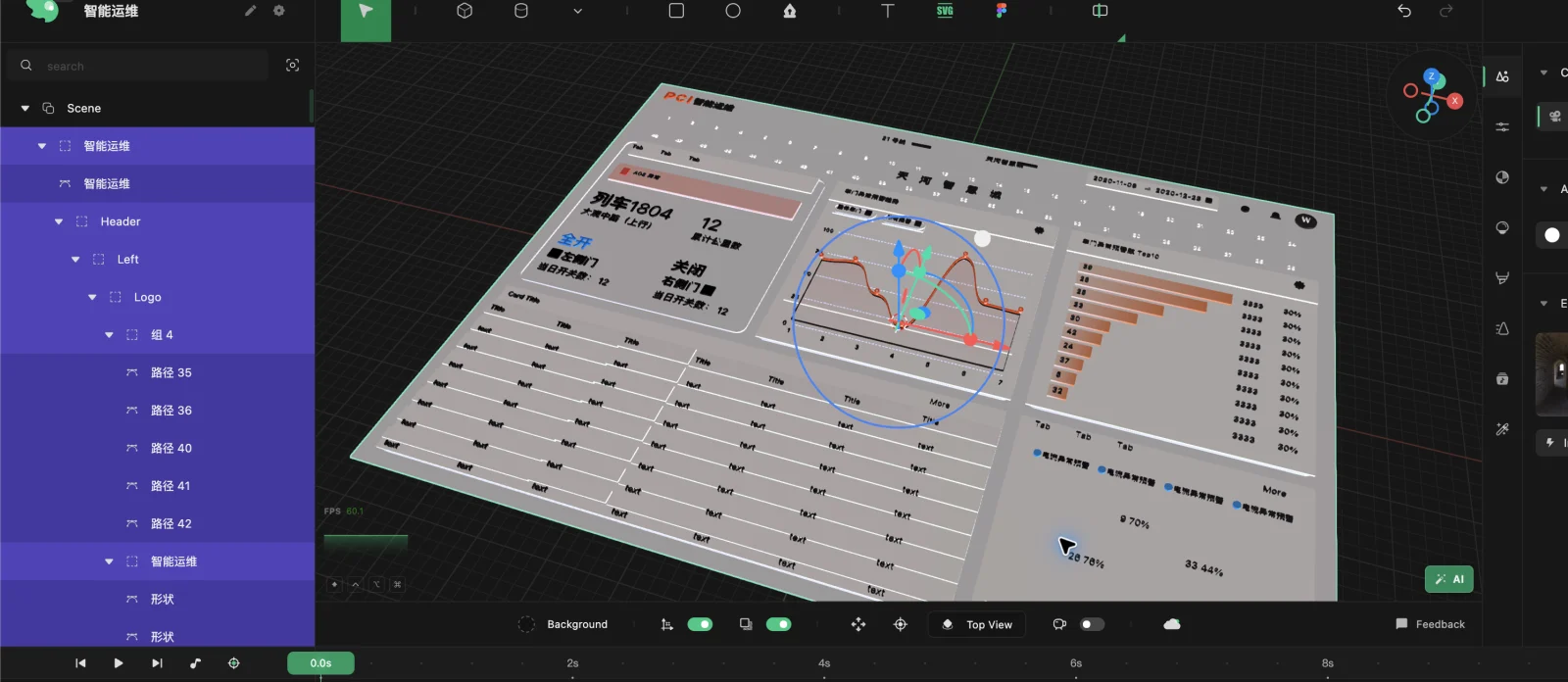
Importing a focused, well-organized Figma frame gives Layer3D useful editable material for a 3D scene. This guide explains what to prepare, what to inspect after import, and how to avoid rebuilding work later.
Choose One Production Frame
Start with the frame needed for the final shot rather than an entire Figma project. A compact source reduces irrelevant layers and makes the imported hierarchy easier to understand.
Good starting points include:
- A product screen for a launch animation.
- A logo and brand composition.
- A poster or campaign visual.
- A title card for social video.
- A landing-page hero design.
Duplicate the production frame in Figma if you need to simplify it without disturbing the original design.
Clean the Layer Structure
Layer names do not need to be perfect, but major groups should describe their purpose. Keep elements separate when they need different depth, materials, or animation timing. Group elements that will always behave together.
Remove hidden alternatives, comments used as visual annotations, obsolete drafts, and off-frame assets. Confirm that fonts and final copy are correct before beginning detailed animation.
Import into Studio
Open Layer3D Studio and use the Figma import path available in the starting workflow. Complete any Figma authorization or selection step requested by the product, then bring the chosen design into the scene.
The first goal is not to make the result look dramatic. It is to verify that the useful design structure arrived intact.
Inspect the Imported Result
Check these items before editing:
- The overall frame dimensions and aspect ratio.
- The order of major visual groups.
- Text content, wrapping, and alignment.
- Shape scale and relative position.
- Groups that should move as one unit.
If a small decorative element imports poorly, decide whether it matters in the final camera. Do not spend production time repairing details that will never be visible.
Establish Scene Groups
Organize imported elements around the shot:
- Background.
- Primary subject or interface.
- Supporting content.
- Typography.
- Foreground accents.
This grouping creates a shorter path to depth and timeline control than treating every leaf layer independently.
Add Depth Before Animation
Place the background behind the main content, keep related interface layers close together, and move only selected accents into the foreground. Set a draft camera and judge the scene from that view.
Layer order and physical distance are not the same thing. Use only enough separation to create readable parallax.
Handle Source Revisions
Figma work changes. Keep the original frame and imported scene clearly associated. When copy or UI is updated, identify the affected group and replace or edit only that part. Recheck its scale, wrapping, depth, and keyframes.
A structured import is valuable because it turns revision into a local change rather than a full restart.
What to Do Next
After the import is stable:
- Refine the static composition.
- Add thickness or bevels to selected elements.
- Build materials and basic lighting.
- Direct the camera.
- Animate large motion before small details.
- Preview, render, and export.
Continue with How to Turn a Figma Design into a 3D Animation for the complete production workflow.