Figma to 3D: How to Keep Text and Layers Editable
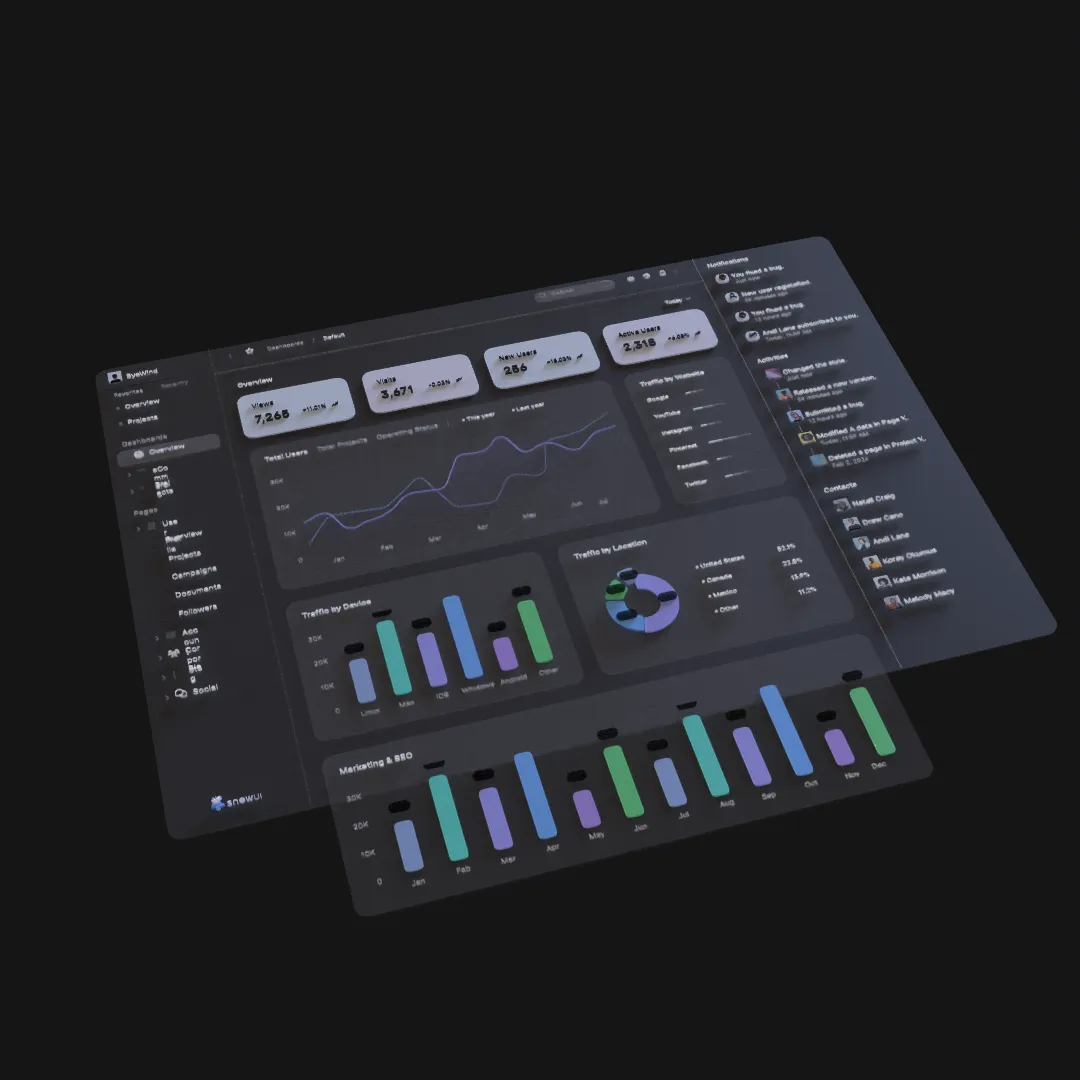
A useful Figma-to-3D workflow preserves the parts of the design that are likely to change. Editable text, meaningful groups, and separate visual layers make a 3D animation easier to revise than a flattened image.
Flattening Is Fast Until the First Revision
Exporting a Figma frame as one PNG is a convenient way to place it in a 3D scene, but it removes the structure needed for real art direction. The headline cannot move independently, the background cannot sit at another depth, and a copy change requires a new export.
Flattening is appropriate for a final texture or a screen that must behave as one surface. It is a poor default for a composition whose parts need depth, animation, or late-stage edits.
Prepare Figma for an Editable Import
Use a simple source hierarchy:
- Keep important text as text.
- Separate the background from the main subject.
- Group repeated interface elements logically.
- Name major layers by purpose.
- Remove invisible alternatives and abandoned drafts.
- Avoid deeply nested groups that add no production value.
The goal is not to perfect the layer panel. It is to make the future animation responsibilities obvious.
Decide What Should Stay Live
Keep an element editable when at least one of these is true:
- Its copy may change.
- It needs independent animation.
- It needs a different depth position.
- It will receive its own material or effect.
- It may be reused in another shot.
Merge or group elements when they always behave as one unit. Editability is valuable, but unnecessary fragmentation makes a timeline harder to direct.
Preserve Text for Production Changes
Live text is especially important in launch videos, social campaigns, and product announcements. Dates, prices, calls to action, and feature names often change near delivery.
Inside Layer3D, editable text can continue through spatial layout and keyframe animation. Establish the final font, weight, alignment, and wrapping before adding detailed motion. If the copy changes later, recheck line length and camera framing rather than assuming the old composition still works.
Use Layers to Build Spatial Hierarchy
Once imported, map the design hierarchy to a small number of depth zones. Do not distribute layers evenly along the Z axis. Important content should remain visually connected.
For a typical product frame:
| Design element | Suggested spatial role |
|---|---|
| Background | Scene anchor |
| Product screen | Primary content plane |
| Cards and callouts | Controlled middle depth |
| Headline | Readable foreground or content plane |
| Decorative shapes | Foreground and background accents |
View the result through the intended camera. A mathematically tidy scene can still produce unreadable overlaps.
Add Thickness Only Where It Communicates Form
Editable layers do not all need to become solid meshes. Use thickness for elements whose edge should become visible: logos, cards, frames, buttons, or display objects. Keep purely graphic backgrounds and fine text restrained.
Non-destructive bevel, solidify, and subdivision choices make later changes easier. If a layer's silhouette does not change on camera, additional geometry may not improve the image.
Keep the Revision Loop Short
When the Figma source changes:
- Identify the changed design group.
- Update or replace only the corresponding scene element.
- Confirm its scale and depth.
- Recheck text wrapping and material assignment.
- Preview the affected animation range.
Do not rebuild the entire scene for a local change.
Editable Does Not Mean Unfinished
Final quality comes from intentional decisions, not from flattening. You can keep a scene editable while still using refined materials, camera movement, lighting, path-traced rendering, and post-processing.
The practical advantage is confidence: a late copy change remains a manageable edit instead of a production restart.
Continue with editable 3D text animation or the broader guide to turning a Figma design into 3D animation.