How to Turn a Figma Design into a 3D Animation
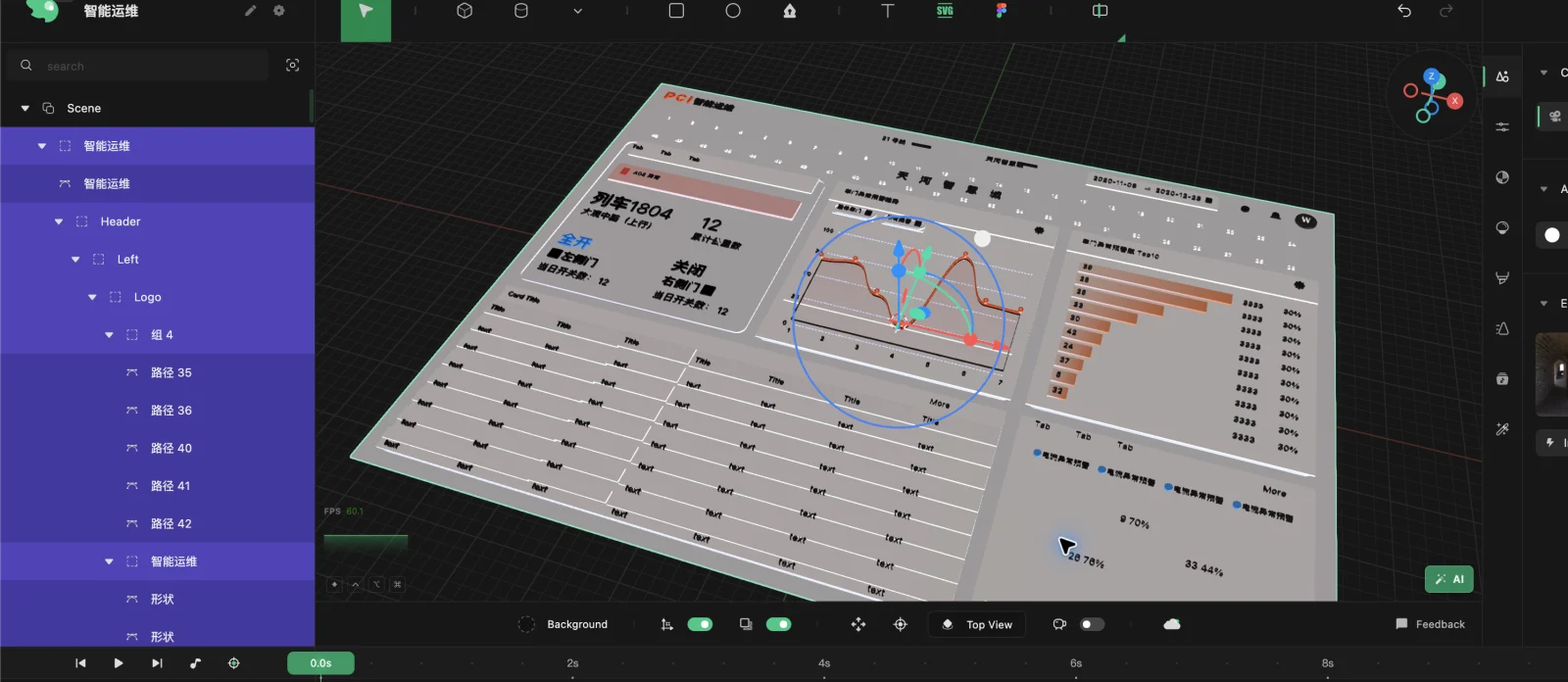
Turning a Figma design into a 3D animation should not require rebuilding the approved layout from scratch. Layer3D provides a browser workflow from editable design layers to depth, materials, camera motion, and rendered video.
What You Need Before You Start
Choose a Figma frame with a clear visual hierarchy. Product screens, campaign graphics, posters, logo compositions, and feature announcements work well because their layers already suggest foreground, middle ground, and background.
Before importing, clean up the source file:
- Give important layers descriptive names.
- Keep text live when possible.
- Group elements that should move together.
- Remove hidden drafts and unused assets.
- Confirm that the frame has the final aspect ratio.
This preparation is small, but it makes the spatial scene easier to understand later.
Step 1: Import the Figma Design
Open Layer3D Studio and bring in the selected Figma design. The useful difference from a flat image export is that the design can remain structured. Text, shapes, and visual groups become material for the 3D scene rather than one merged texture.
Inspect the imported hierarchy before animating. Make sure the background, primary subject, supporting graphics, and typography are separated in a way that matches the intended shot.
Step 2: Turn Layer Order into Depth
Start with restrained depth. Move the main subject forward, keep the background behind it, and place secondary elements between those two planes. A small camera move can reveal depth more effectively than extreme extrusion.
Use three practical depth zones:
- Background: color fields, large shapes, and environmental elements.
- Content plane: interface panels, illustrations, or the main composition.
- Foreground: titles, badges, particles, or details that should cross the camera.
Review the scene from the final camera, not only from an editor perspective. Depth should support the original composition instead of breaking it.
Step 3: Add Geometry and Edge Treatment
Not every layer needs to become a thick object. Reserve real thickness, bevels, and subdivision for elements that benefit from highlights or silhouette changes. A logo may need a beveled edge, while a UI panel may only need slight thickness.
Layer3D's editable geometry and modifier stack let you refine these decisions without permanently rebuilding the base form. Keep the first pass simple and add detail only where the camera can see it.
Step 4: Build Materials and Lighting
Use materials to separate surfaces, then use lights to explain their shape. A basic setup can include one dominant light, a softer fill, and enough environment response to keep dark areas readable.
For glass elements, test both transparency and the objects behind the glass. The effect only works when the scene provides something meaningful to refract, reflect, or soften.
Step 5: Animate the Camera and Key Properties
Create a short shot before attempting a long sequence. A reliable first animation is:
- Begin with the camera slightly wider and off-axis.
- Move toward the primary subject.
- Add a small rotation or parallax shift.
- Stagger foreground and background movement.
- Animate one material or text property as a finishing accent.
Use the timeline to coordinate object transforms, camera movement, text, and material changes. Check the motion at normal playback speed; a move that feels elegant while scrubbing can feel slow or abrupt in real time.
Step 6: Render and Export
Preview the whole shot before switching to the final renderer. Check framing, timing, text readability, reflections, and whether any layer passes through another object.
For final output, Layer3D can render video up to 1080p and 60 fps or export individual frames. Use a frame sequence when the result will continue into editing or compositing. Use video when the shot is already complete and ready to publish.
Common Mistakes
- Giving every layer the same amount of depth.
- Adding camera movement before the composition is stable.
- Using strong glass without designing the background behind it.
- Making all objects move at once.
- Increasing render quality before testing the full animation.
The best result still feels like the original Figma design, but gains spatial hierarchy, material response, and intentional motion.
For a broader overview, read What Is Layer3D? and the complete Figma frame to 3D scene workflow.
Open Layer3D Studio and begin with one finished Figma frame.