From Figma Frame to 3D Scene: A Complete Workflow
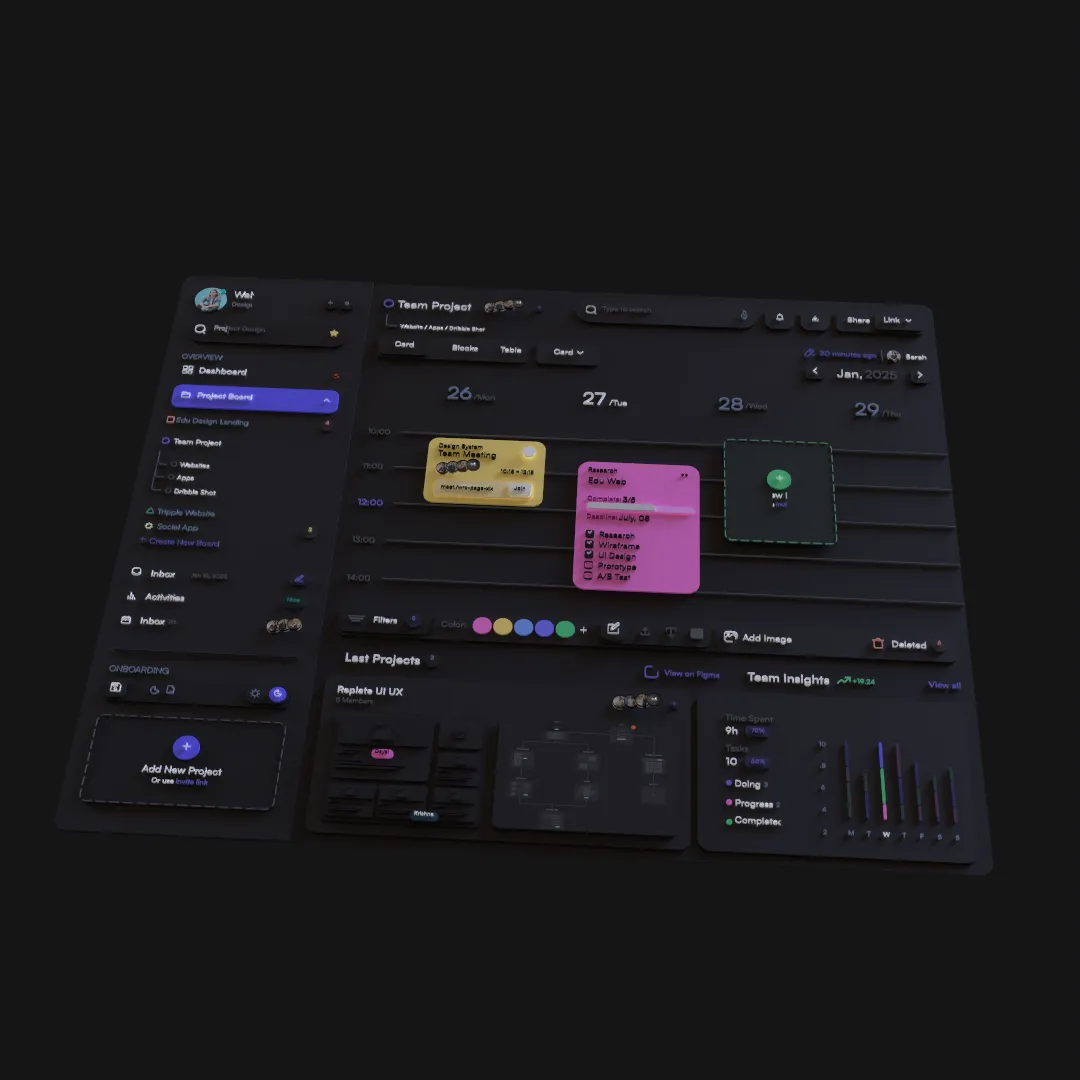
Moving from a Figma frame to a finished 3D scene is easier when the work is divided into clear stages: source preparation, spatial composition, geometry, materials, animation, rendering, and delivery.
Stage 1: Define the Deliverable
Write down the final duration, aspect ratio, destination, and one message the scene must communicate. A website loop, social video, presentation shot, and print-ready object require different decisions.
Choose one Figma frame that contains the visual system needed for that deliverable.
Stage 2: Prepare the Figma Source
Keep important text live, preserve elements that need independent animation, group elements that move together, and remove unused drafts. Confirm copy and frame dimensions.
The source hierarchy should answer a production question: which parts need separate depth, material, or timing?
Stage 3: Import and Inspect
Bring the design into Layer3D Studio. Check the overall size, text, shapes, groups, and layer order. Resolve meaningful problems before adding keyframes.
Organize the scene into background, primary content, supporting content, typography, and foreground accents. A short, readable hierarchy is easier to animate.
Stage 4: Build the Static Composition
Translate visual order into restrained physical depth. Set the intended output camera early and judge every decision through it.
The still frame should already communicate the message. If it does not, correct scale, framing, contrast, and spacing before introducing motion.
Stage 5: Develop Selected Geometry
Add thickness, bevels, solidify, subdivision, or topology edits where the camera needs real form. Logos, frames, cards, and hero objects often benefit; backgrounds and fine text often do not.
Use the non-destructive modifier stack so proportions and edge treatment remain adjustable.
Stage 6: Create Materials and Lighting
Assign simple materials first. Establish a dominant light direction, readable shadows, and enough fill to preserve important detail. Add transparent or frosted glass only after the basic scene reads clearly.
Test reflective materials with the surrounding scene, because reflections depend on what the object can see.
Stage 7: Animate from Large to Small
Build motion in this order:
- Camera start and end.
- Primary object or interface.
- Supporting depth and parallax.
- Text reveals.
- Material, effect, and finishing accents.
Preview after every pass. Remove motion that does not improve comprehension.
Stage 8: Refine the Camera
Check perspective, text readability, clipping, focus, and final framing. A camera move should reveal geometry or guide attention. If the same shot works with a static camera, decide whether movement is actually helping.
Stage 9: Preview the Entire Sequence
Watch at normal speed and without stopping. Confirm the first second establishes context, the central action is obvious, and the ending holds long enough to understand.
Use a low-cost render to catch problems with reflections, transparency, and depth of field before the final pass.
Stage 10: Render and Deliver
Use Layer3D's progressive WebGPU path-tracing workflow when the final image needs material-aware reflections and higher fidelity. Add bloom, depth of field, tone mapping, or vignette only when each effect has a clear visual purpose.
Export video up to 1080p and 60 fps or render individual frames for later editing and compositing. Keep the Figma source, editable scene, and clean master together.
A Practical Quality Checklist
- The result still reflects the source design.
- Important text remains readable.
- Depth creates hierarchy rather than clutter.
- Geometry detail is visible from the camera.
- Materials respond consistently during motion.
- The final frame supports the intended message.
- Export settings match the delivery platform.
This workflow is intentionally linear. Each stage protects the next one from unnecessary rework.
For the shorter beginner version, read How to Turn a Figma Design into a 3D Animation.