How to Animate Editable Text from Figma in 3D
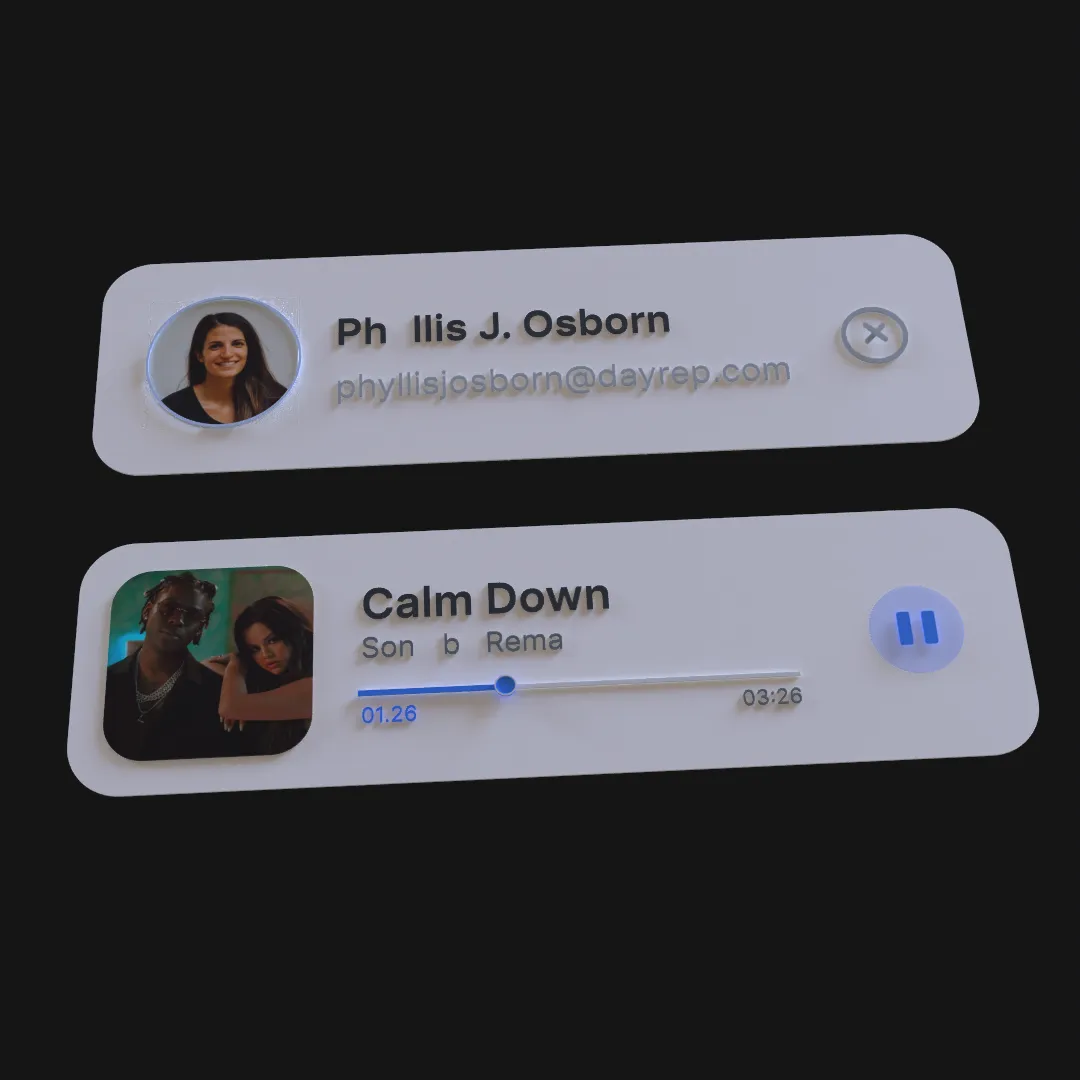
Editable text makes a 3D title sequence easier to revise than outlined or flattened artwork. A Figma-to-Layer3D workflow can preserve the message while adding spatial layout, materials, camera motion, and keyframes.
Keep Important Copy Live
Campaign headlines, product names, prices, dates, and calls to action often change late. Keep them as text when possible. Decorative lettering with custom vector modifications may need a different treatment, but ordinary production copy benefits from remaining editable.
Before import, confirm:
- Font family and weight.
- Line breaks and alignment.
- Final capitalization.
- Text-box dimensions.
- Which lines animate together.
Typography should be structurally correct before detailed keyframes are added.
Choose a Spatial Role for the Text
Text can behave as:
- A readable layer in front of the scene.
- A dimensional object with visible thickness.
- A title that the camera travels around.
- A label attached to a product or interface.
- A background form used for atmosphere.
Primary information should favor readability. Decorative type can use more aggressive depth, rotation, and overlap.
Add Geometry Carefully
Thickness and bevels give letters edges that catch light. Too much depth can close counters, create heavy side faces, or make closely spaced letters collide visually.
Test the word from the final camera. Use bevels to create a controlled highlight rather than to make every title look inflated. If the camera never reveals the side of the text, additional geometry may not be useful.
Design the Motion by Reading Order
Animate the structure of the message rather than applying random delays. A headline can enter by line, phrase, or semantic group. The most important word may arrive last or receive the strongest spatial move.
A simple sequence:
- Establish the background and camera.
- Reveal the first line.
- Add the key product or benefit phrase.
- Settle the text into its most readable position.
- Hold the final message.
Avoid constant motion after the viewer needs to read.
Coordinate Camera and Text
When the camera moves, do not also rotate every text object dramatically. One system can provide the spatial reveal while the other maintains stability.
Set the final camera first, verify the copy, then create the opening state. Watch for perspective distortion, letters crossing other geometry, and lines becoming too small during the move.
Use Materials to Support Hierarchy
Different materials can separate the product name, supporting copy, and decorative type. Metallic or glass treatments work best on large display lettering with enough surface area to show reflections. Small explanatory text usually needs simple contrast.
Lighting should reveal letterforms, not create broken highlights that interfere with recognition.
Plan for Copy Changes
After a text edit, recheck:
- Line wrapping.
- Letter spacing and total width.
- Alignment with other scene elements.
- Geometry thickness and bevel quality.
- Animation start and end positions.
- Camera framing.
Editability shortens the revision, but it does not remove the need to review the new shape of the message.
For more on preserving structure, read Figma to 3D: How to Keep Text and Layers Editable.