How to Create a 3D Product Launch Video from a Figma Design
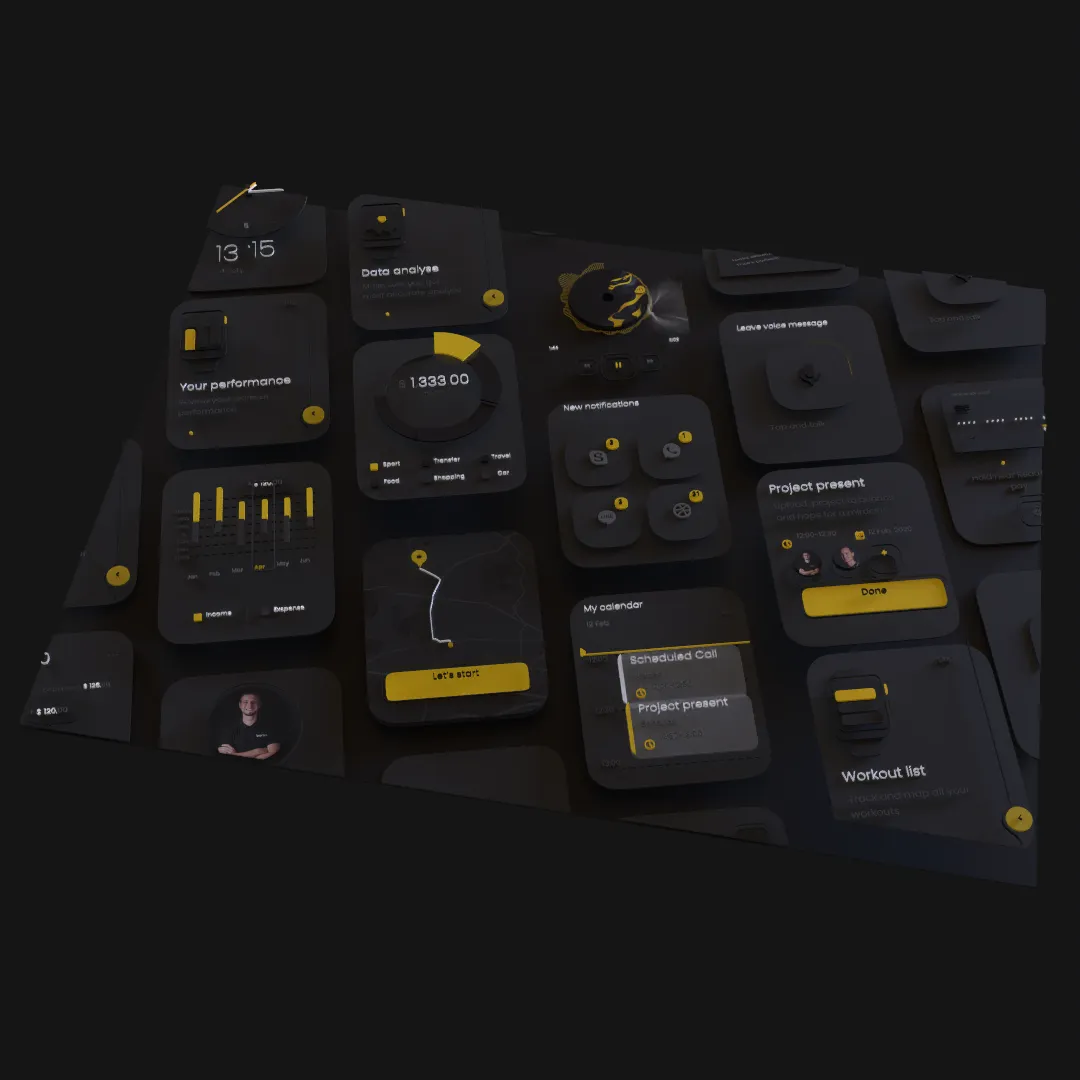
A Figma product screen can become the foundation of a short 3D launch video. The most effective workflow preserves the approved UI, adds spatial hierarchy, and builds one clear camera-directed message.
Start with the Marketing Claim
Do not begin by animating every screen in the product. Define one sentence the shot must communicate, such as:
- See the new workflow at a glance.
- Move from setup to result in three steps.
- Focus on the redesigned dashboard.
- Show how one feature changes the user's work.
This sentence determines which Figma frames, labels, and visual details deserve time on screen.
Build a Five-to-Ten-Second Story
A short launch shot can use three beats:
- Context: establish the product or brand.
- Feature: reveal the important interface or interaction.
- Resolution: hold the product name and call to action.
Longer does not automatically mean clearer. A focused six-second loop is often more useful across a landing page, social post, presentation, and launch video edit than a complex standalone sequence.
Prepare the Figma Assets
Create a clean production frame rather than importing an entire design file. Keep the product screen, important interface panels, headline, and brand elements separate. Remove annotations, development notes, hidden alternatives, and off-canvas experiments.
If the product UI will appear on a device or display surface, confirm its aspect ratio before import. Cropping the screen later can make text and controls look subtly wrong.
Convert the Layout into a Scene
Import the Figma design into Layer3D and establish three spatial levels:
- Environment or background.
- Device, frame, or primary UI surface.
- Headlines, feature cards, and decorative accents.
Use actual geometry for the device or key product object when its edge and silhouette matter. Keep interface content close to its screen so it still reads as a coherent product rather than disconnected floating cards.
Direct the Camera Around the Message
Camera movement should reveal the feature, not hide it. Begin with an angle that establishes depth, then settle into a view where the product UI is readable.
A practical pattern is a shallow arc combined with a slow push. The arc reveals thickness and parallax; the push increases focus. Avoid large rotations that turn the product screen away from the viewer during the most important copy.
Animate Interface Groups, Not Every Control
Use motion to guide attention:
- Bring the primary panel forward.
- Reduce competing elements.
- Reveal one callout after the camera settles.
- Use a small material or lighting change to mark completion.
- Hold the final state.
The interface does not need to simulate the whole product interaction. It needs to communicate the value of the feature accurately.
Add Lighting and Materials
Choose materials that support the product brand. Dark interfaces often benefit from controlled edge highlights and soft reflections. Light interfaces need enough separation from the environment to preserve their boundaries.
Glass can work for surrounding cards or framing elements, but avoid placing strong distortion directly over important UI text. Decorative material effects should never reduce product comprehension.
Preview for Every Destination
Check the shot in the contexts where it will be used:
- Landing-page hero.
- Social feed crop.
- Presentation slide.
- Product Hunt or launch announcement.
- Larger edited launch film.
Keep titles inside safe areas and confirm that the main idea survives when the animation is viewed silently.
Export a Reliable Master
Layer3D supports video up to 1080p and 60 fps as well as rendered frames. Export frames when another editor needs flexibility for color, compositing, or multiple delivery formats. Export a finished video when the scene is already approved and needs a quick handoff.
Archive the editable Layer3D scene alongside the Figma source. A product launch often produces follow-up versions with revised copy, colors, dates, or screen content.
For a focused website version, follow the guide to creating a 3D hero animation from Figma.