How to Export a Figma Design as a 3D Animation Video
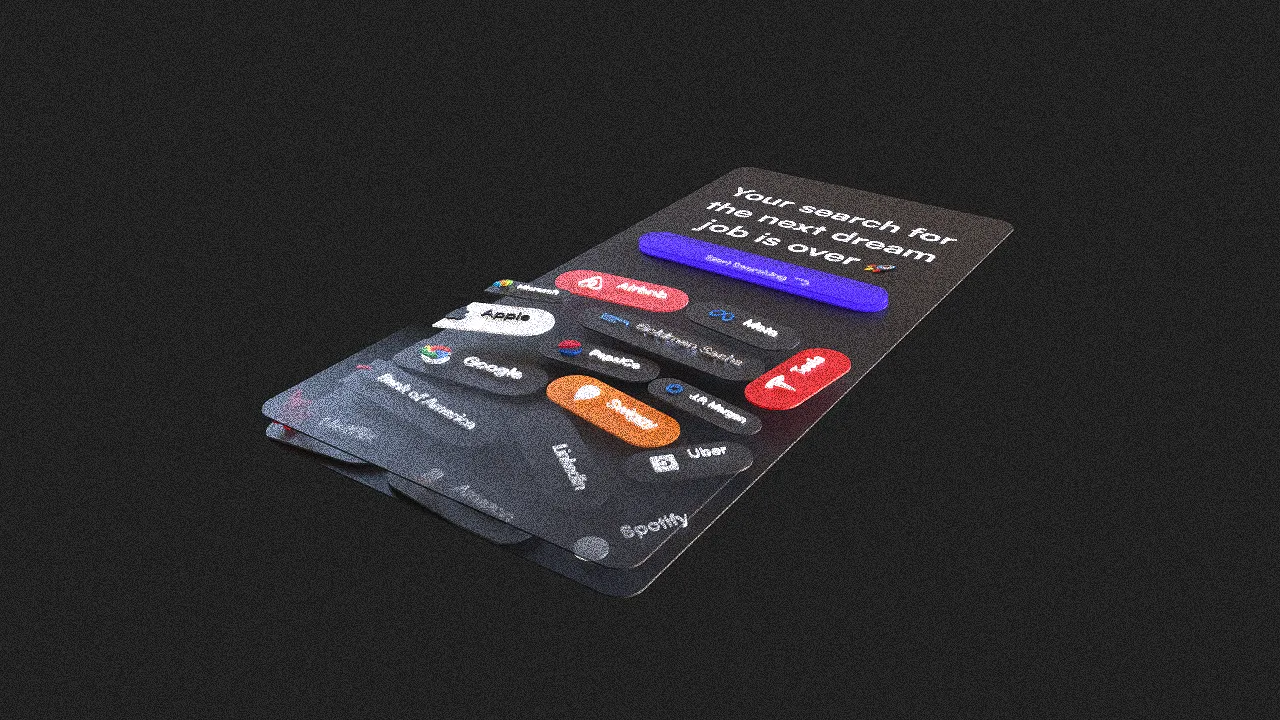
Once a Figma design has become an animated Layer3D scene, the final export should match its destination. Resolution, frame rate, duration, and delivery format matter as much as the render itself.
Decide Where the Video Will Be Used
Define the destination before final rendering:
| Destination | Practical priority |
|---|---|
| Website hero | Small delivery size and a strong first frame |
| Social post | Platform crop, short duration, silent readability |
| Presentation | Reliable playback and clear text |
| Video edit | Clean master or frame sequence |
| Product launch | Reusable master for several outputs |
One render can serve multiple uses, but only if the composition leaves enough safe space for different crops.
Review the Scene Before Export
Play the complete animation at normal speed. Check:
- Text remains on screen long enough to read.
- The camera never clips through geometry.
- Glass and reflections remain stable.
- Objects do not cross unintentionally.
- The first and final frames are useful.
- Loop transitions are clean when required.
Use low-cost previews until timing is approved. Higher render quality cannot correct a weak edit.
Choose Resolution
Layer3D supports video output up to 1080p. Use the actual delivery aspect ratio rather than rendering a landscape frame that will later be aggressively cropped to portrait.
For a campaign with several destinations, preserve a master scene and create separate camera framing for landscape, square, and vertical outputs. This protects typography and the main product from automated cropping.
Choose Frame Rate
Frame rate affects motion character and production cost:
- 24 fps: cinematic pacing and fewer frames to render.
- 30 fps: common web, presentation, and social delivery.
- 60 fps: smoother fast movement, with more frames and larger output.
Use 60 fps when the motion benefits from it, not as a default badge of quality. A slow camera move may look excellent at 24 or 30 fps.
Video or Frame Sequence?
Export a finished video when the animation is approved and needs immediate delivery. Export individual rendered frames when the work will continue into editing, compositing, color treatment, or several codecs.
A frame sequence also makes recovery easier: if a long render is interrupted, completed frames may remain usable. It requires more storage and a second step to assemble the final video.
Preserve a Clean Master
Keep one high-quality version without platform-specific text overlays or compression. Derive smaller social and web versions from that master instead of repeatedly compressing an already compressed file.
Archive together:
- The source Figma frame.
- The editable Layer3D scene.
- The clean master render.
- Delivery-specific exports.
- Any poster frame or thumbnail.
Check the Export Outside Studio
Open the final file in an ordinary player. Watch it once from beginning to end, verify duration and frame size, and inspect important text at 100% scale. If the destination is a website, test the actual page rather than assuming local playback represents the visitor experience.
For scene creation, begin with How to Turn a Figma Design into a 3D Animation.