How to Create an Animated 3D Device Mockup from Figma
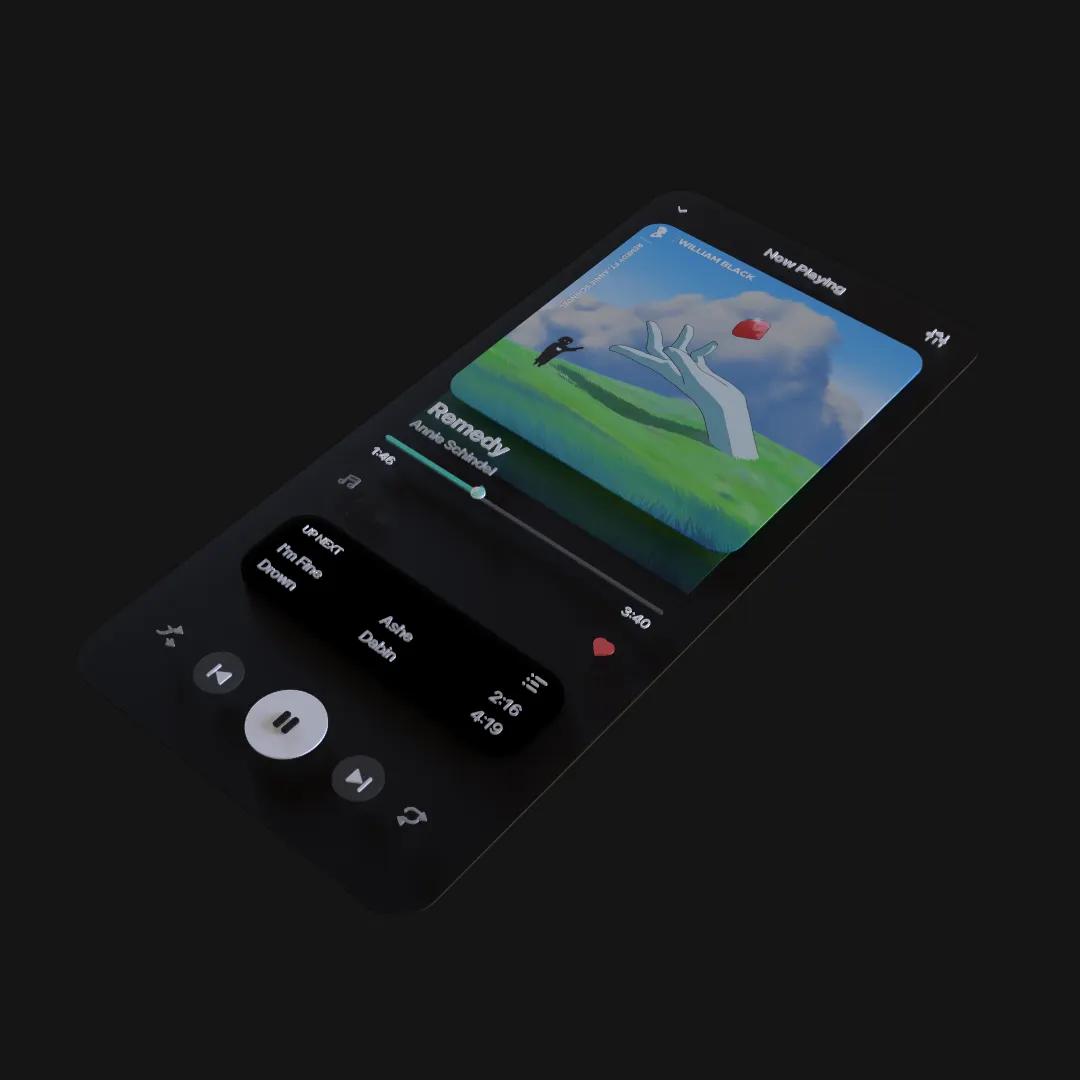
An animated 3D device mockup can present a real Figma interface inside a camera-directed product shot. The UI remains the message while geometry, materials, and lighting make the presentation feel dimensional.
Select the Product Screen
Choose one Figma frame that represents the feature clearly. Remove design annotations, cursor notes, alternate states, and elements outside the visible device area.
Match the frame to the device screen ratio. If the proportions differ, decide whether to crop, adapt the UI, or use a different device before building the scene.
Decide What the Mockup Must Explain
A device mockup can:
- Introduce a new product.
- Present a redesigned screen.
- Move between feature states.
- Show a mobile and desktop relationship.
- Create a reusable landing-page visual.
Pick one. A mockup that rapidly cycles through many screens often communicates less than one carefully directed state change.
Build the Device and Screen Relationship
Place the imported UI on the intended screen surface. Keep it aligned with the display and check the result from the final camera. Rounded display corners, bezels, and camera perspective can reveal small alignment errors.
Treat the device as geometry and the interface as readable visual content. The screen does not need the same material response as the outer body.
Choose a Camera Angle
Use a shallow three-quarter angle to show device thickness while keeping the interface legible. A front view prioritizes UI; a stronger side angle prioritizes the object.
Set the final readable view first, then create the opening position. Avoid rotating the device so far that the central feature becomes a narrow trapezoid.
Animate the Product Story
Build a simple sequence:
- Establish the device silhouette.
- Move toward the screen.
- Reveal or emphasize the important interface panel.
- Add a headline or callout.
- Hold the final product view.
Use depth and parallax for supporting cards, but keep interface relationships accurate. A decorative element should not imply a product behavior that does not exist.
Light the Device, Protect the UI
Create edge highlights that explain the device form. Dark bodies need separation from the background; bright bodies need enough contrast around their silhouette.
Prevent strong reflections, glass distortion, or post-processing from obscuring the interface. The product screen is not merely a texture—it is the information visitors came to see.
Prepare Multiple Crops
One scene can serve several outputs if the camera is adapted:
- Landscape website hero.
- Square social post.
- Vertical short-form video.
- Presentation slide.
- Product launch montage.
Do not rely on automatic cropping. Create a camera framing for each important aspect ratio and recheck text size.
Export the Master
Layer3D supports video up to 1080p and 60 fps and can render individual frames. Use frames when another application will add editing, captions, or several delivery versions.
Archive the Figma screen and editable Layer3D scene together. When the UI changes, update the screen content and check its alignment without rebuilding the full device shot.
For a larger campaign workflow, read How to Create a 3D Product Launch Video from a Figma Design.