How to Animate Figma Layers in 3D Without Rebuilding Your Design
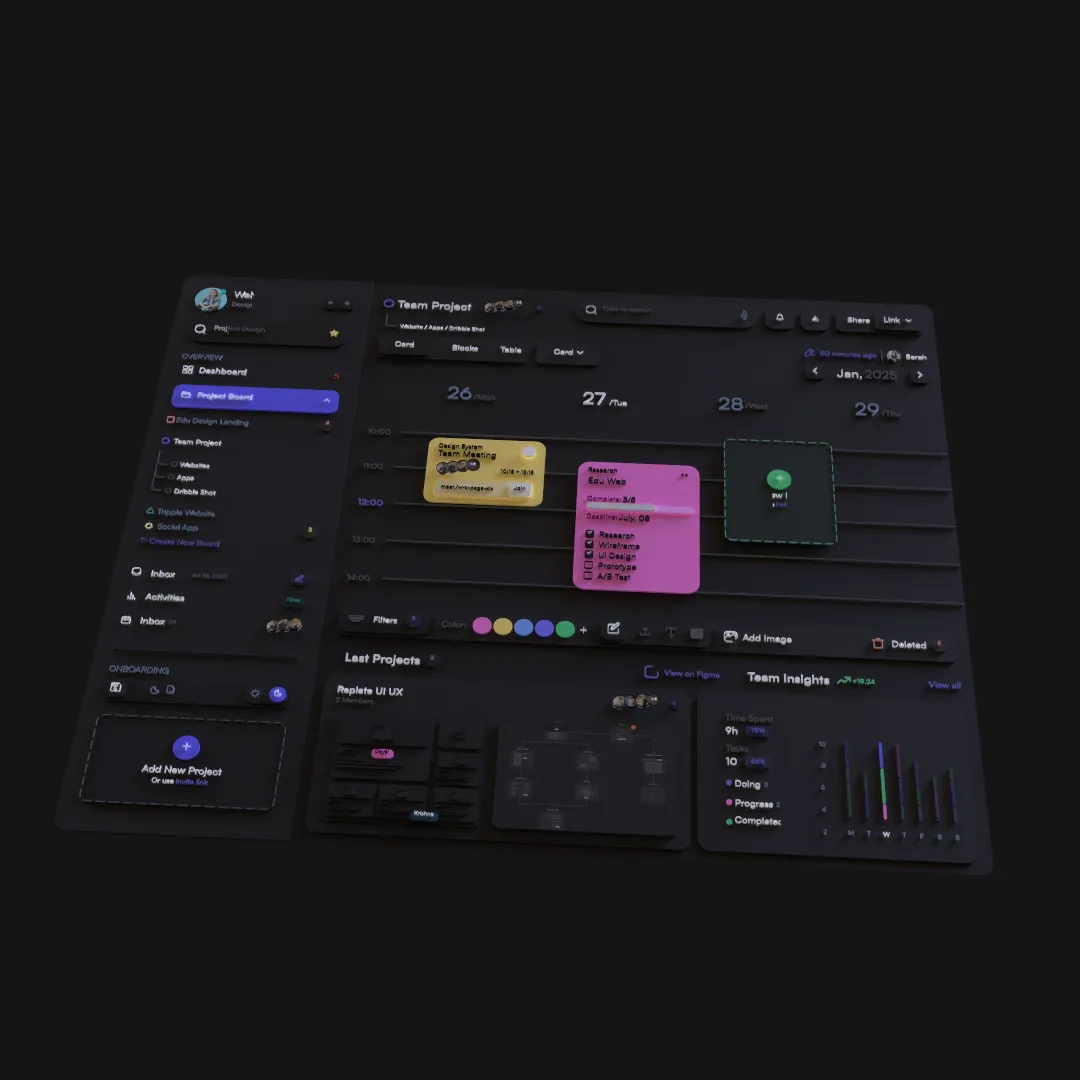
You can animate Figma layers in three dimensions without tracing the interface, flattening the artwork, or recreating the composition in a traditional 3D package. The key is to preserve the design structure and add depth deliberately.
Why Rebuilding Creates Problems
A finished Figma design already contains decisions about typography, spacing, color, hierarchy, and brand consistency. Rebuilding it in another application introduces avoidable differences:
- Text may be converted or replaced.
- Layer proportions can drift.
- Updated product screens must be rebuilt again.
- Designers lose the relationship between the source and final animation.
Layer3D treats the imported design as the actual starting point for the scene.
Organize the Source Layers
Before import, divide the Figma frame by motion responsibility rather than visual appearance alone. Elements that should travel together belong in the same group. Elements that need independent timing should remain separate.
A product announcement might use these groups:
- Background and atmosphere.
- Device or main product surface.
- Interface content.
- Headline and supporting copy.
- Decorative foreground elements.
This structure makes the animation timeline easier to manage.
Establish the Static 3D Composition First
Do not keyframe immediately. Arrange the design in depth, position the camera, and confirm the still image first. If the static composition is weak, animation will only make the problem move.
Use layer order as an initial clue, then adjust based on the final camera. Keep related UI elements close together so the interface remains readable. Push decorative graphics farther forward or backward only when the parallax contributes to the shot.
Choose What Actually Needs Motion
A useful 3D animation does not require every layer to move. Assign each animated element one clear job:
- The camera reveals spatial depth.
- The main subject establishes focus.
- Supporting layers add parallax.
- Text communicates the message.
- Material changes provide a visual accent.
When two animations communicate the same thing, remove one. A camera push and a dramatic object scale-up often compete rather than reinforce each other.
Build the Timeline in Passes
Work from large motion to small motion:
Pass 1: Camera
Set the beginning and ending composition. Keep the move short enough that the message remains readable.
Pass 2: Main layers
Animate the product, logo, or primary interface group. Use a small offset from the camera timing so the scene does not feel mechanically locked together.
Pass 3: Supporting layers
Add controlled parallax and staggered entrances. Background elements should generally move less than foreground elements.
Pass 4: Text and materials
Finish with text timing, glass clarity, color changes, glow, or another property that supports the central idea.
Preserve Editability During Revisions
Keep text live, avoid unnecessary flattening, and use non-destructive geometry modifiers for thickness and edge treatment. When marketing copy or product UI changes, the affected layer can be updated without rebuilding the entire shot.
This is the main production benefit of the workflow: the 3D animation remains connected to design decisions that are expected to change.
A Simple Motion Recipe
For a five-second product shot:
- Start slightly wider than the final frame.
- Move the camera forward and a few degrees sideways.
- Bring the interface group forward with a short delay.
- Reveal the headline after the primary visual becomes clear.
- Hold the final composition long enough to read.
Render a low-cost preview, watch it without touching the timeline, then correct only the moments that feel unclear.
When to Use Another Tool
Use a dedicated 2D motion tool when the job is primarily interface transitions, animated components, Lottie output, or developer handoff. Use a full production suite when the work needs advanced character rigging, simulation, or a large effects pipeline.
Layer3D is strongest when an existing design needs real depth, editable geometry, camera direction, materials, and a finished visual output.
Next, learn how to add depth and camera movement or how to keep Figma text and layers editable.