How to Create 3D Typography Animation Online
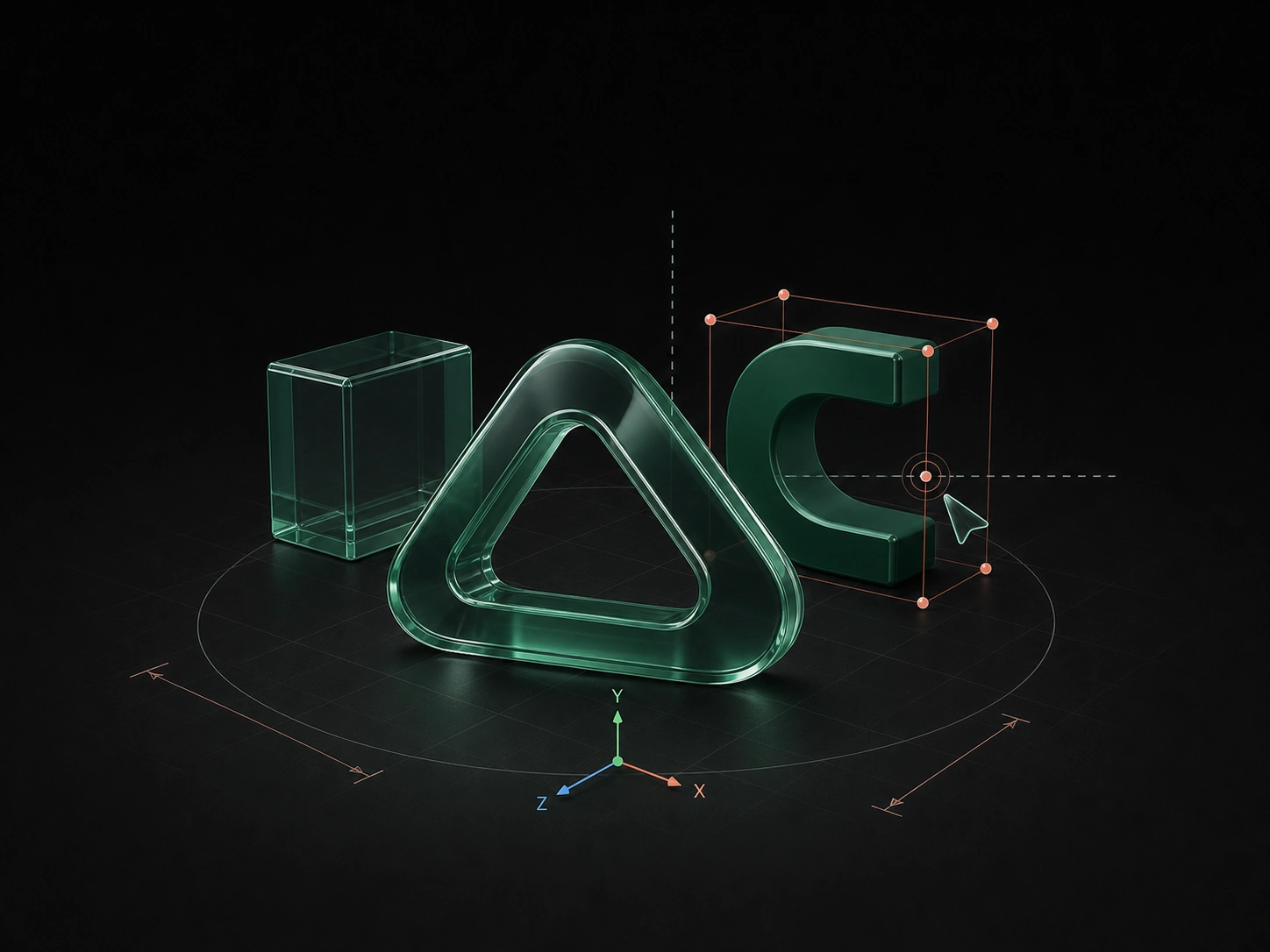
3D typography combines readable type design with geometry, material response, lighting, and camera direction. Layer3D provides an online workflow for editable text, keyframes, and rendered output.
Write the Message Before Designing the Effect
Use a short phrase with a clear reading order. Long paragraphs rarely benefit from dimensional animation. Product names, campaign lines, chapter titles, and feature statements are stronger starting points.
Decide which word carries the idea. That word can receive the strongest depth, material, or movement while supporting copy remains simpler.
Preserve Editable Text
Keep the type live while exploring font, weight, line breaks, alignment, and size. Outlining too early makes copy changes slower and can turn a small wording revision into a geometry rebuild.
Check the font at the actual output size. Thin strokes and tight counters may become fragile after beveling, extrusion, perspective, or compression.
Choose Between Layered and Solid Type
Two spatial treatments serve different purposes:
- Layered type: text remains visually flat but occupies different depths. Good for graphic motion and parallax.
- Solid type: letters gain thickness and visible side faces. Good for materials, lighting, and camera moves.
Combine them selectively. A solid hero word with lighter supporting lines often creates better hierarchy than making every line equally dimensional.
Build Geometry for the Camera
Add only enough depth for the camera to reveal the side faces. Use bevels to create readable edge highlights and inspect curved and narrow letterforms for distortion.
The correct geometry is determined by the final view. A very deep word seen almost straight on adds render cost without communicating more form.
Select Materials by Scale
Large letters can display glass, reflections, and procedural detail. Small copy needs simpler surfaces and stronger contrast.
For transparent typography, design the background at the same time. The letter only appears transparent because of the light and visual information behind it.
Animate by Meaning
Avoid arbitrary letter-by-letter motion when the phrase should be read as a unit. Animate by word, line, or semantic group.
A useful title sequence can follow this rhythm:
- Establish the scene.
- Reveal the supporting phrase.
- Bring the key word into depth.
- Settle the camera.
- Hold the complete title.
Use the timeline to coordinate text transforms, material values, and the camera. Leave enough time for the viewer to read the final composition.
Use Camera Movement Sparingly
A shallow orbit can reveal thickness; a push can increase importance; a sideways track can create parallax between lines. Choose one main move.
Keep primary text close enough to a front-facing view for recognition. Extreme perspective works better for transitions and decorative type than for product messaging.
Finish for the Destination
For social video, verify the vertical or square crop. For a website hero, keep important text outside areas covered by HTML navigation or calls to action. For presentations, test playback and legibility on a projected screen.
Render a clean master, then create platform-specific versions. Keep the editable scene so copy, color, timing, and aspect ratio can be revised later.
For Figma-sourced copy, see How to Animate Editable Text from Figma in 3D.